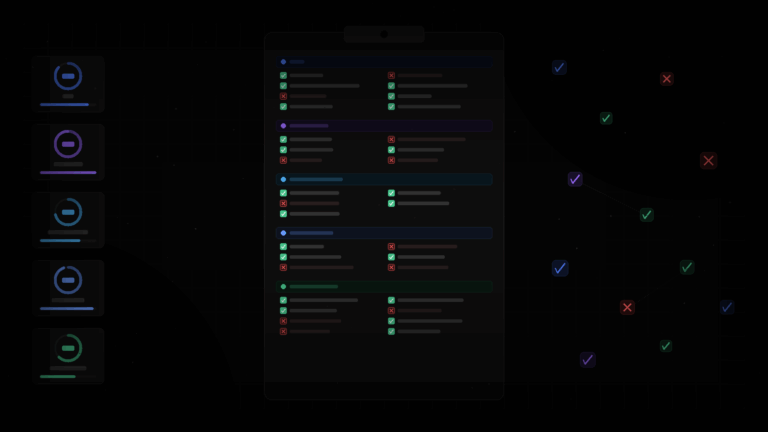
A website audit is a systematic review of your site’s SEO, speed, security, and usability designed to find the issues silently costing you leads and rankings. Research shows 78% of small business websites have at least three critical problems their owners don’t know about — with the average undetected issue costing 14-28 lost leads per month. Below is the exact step-by-step process to do a website audit yourself, covering 33 checks across five categories.
Wondering what an audit costs? See our guide to how much an SEO audit costs.
A website audit is the antidote. It’s a systematic process of examining your site from every angle — SEO, speed, security, usability, and conversions — to find exactly what’s broken and what to fix first. If you’ve already seen our complete website audit checklist, this guide shows you how to work through each stage properly, in the right order, so nothing gets missed.
This guide is for small business owners, marketing managers, and freelancers who want to conduct a thorough website audit without paying an agency thousands. Whether your website isn’t generating leads or you simply want to stay ahead of competitors, you’ll have a clear process to follow by the end.
What Is a Website Audit?
A website audit is a full health check of your site across five core areas: technical SEO, on-page content, site speed, security, and user experience. Think of it like an MOT for your website — a structured inspection that identifies what’s working, what’s failing, and what needs urgent attention.
Unlike a quick glance at your Google Analytics dashboard, an audit digs into the underlying mechanics. It checks whether search engines can properly crawl your pages, whether your site loads fast enough to keep visitors engaged, whether your security certificates are valid, and whether your calls to action actually convert.
Website Audit vs. SEO Audit
People often use these terms interchangeably, but they’re different. An SEO audit focuses specifically on search engine visibility — keywords, backlinks, indexing, meta tags. A website audit is broader. It includes SEO but also covers performance, security, accessibility, and conversion rate optimisation. For most small businesses, the full website audit is what you actually need.
Why Website Audits Matter More Than You Think
Your website isn’t static. Plugins update, SSL certificates expire, new pages get added without proper meta tags, and Google’s algorithm shifts quarterly. Without regular audits, small problems compound into serious ones.
| Issue | Time Undetected | Estimated Cost |
|---|---|---|
| Broken contact form | 2 weeks | 14-28 lost leads |
| Expired SSL certificate | 3 days | 60-80% traffic drop + Google warning |
| Slow page speed (5s+) | Ongoing | 53% bounce rate increase |
| Missing meta descriptions | Months | 20-30% lower CTR from search |
| Mobile layout broken | 1 week | 60%+ of visitors can’t convert |
The businesses that audit quarterly catch these problems before they cost real money. The ones that never audit only discover them when a customer says “your website looks broken on my phone.”
A website audit isn’t a one-off project — it’s an ongoing discipline. The most successful small business websites are audited at least every 90 days, with critical checks (SSL, uptime, forms) monitored weekly.
What You Need to Do a Website Audit
Before diving into the audit itself, gather these essentials:
- Google Search Console access — shows how Google sees your site (crawl errors, indexing issues, search performance)
- Google Analytics (or equivalent) — traffic data, bounce rates, conversion tracking
- Your website login — CMS admin access to check plugins, settings, and content
- A spreadsheet or checklist — to document findings and prioritise fixes
- A website audit tool — automates the technical checks (we offer a free website health check tool that covers 33 checks across all five categories)
You don’t need expensive software. Free tools like Google’s PageSpeed Insights, Search Console, and our audit tool cover 90% of what matters for a small business site.
How to Audit Your Website’s Technical SEO
Technical SEO is the foundation. If search engines can’t crawl and index your pages properly, nothing else matters — your content won’t rank regardless of quality.
Check Crawlability and Indexing
- Robots.txt — visit
yoursite.com/robots.txtand confirm it’s not accidentally blocking important pages - XML Sitemap — check
yoursite.com/sitemap.xmlexists and is submitted to Google Search Console - Index coverage — in Search Console, check for pages with errors or “Excluded” status
- Canonical tags — ensure each page has a self-referencing canonical to prevent duplicate content issues
Review On-Page SEO Elements
- Title tags — every page should have a unique title under 60 characters containing the target keyword
- Meta descriptions — unique, compelling, 120-155 characters with a clear value proposition
- H1 tags — one per page, containing the primary keyword naturally
- Image alt text — descriptive alt attributes on every image (accessibility + SEO)
- Internal links — every page should link to and receive links from related content
If your site is built on WordPress, plugins like Yoast SEO flag many of these issues automatically. But they can’t catch everything — particularly structural problems like orphaned pages (pages with no internal links pointing to them).
Pay special attention to your most important pages first: your homepage, service pages, and any landing pages running paid traffic. These generate the most revenue, so SEO issues here cost the most. Then work through blog posts and secondary pages systematically.
How to Audit Site Speed and Performance
Google has confirmed that page speed is a ranking factor. More importantly, 53% of mobile visitors leave a site that takes longer than 3 seconds to load. Speed isn’t just about SEO — it directly impacts whether visitors stay long enough to become leads.
Core Web Vitals
Google measures three specific metrics that affect rankings:
- Largest Contentful Paint (LCP) — how long until the main content loads. Target: under 2.5 seconds.
- Interaction to Next Paint (INP) — how quickly the page responds to user interaction. Target: under 200ms.
- Cumulative Layout Shift (CLS) — how much the page layout jumps around during loading. Target: under 0.1.
Test these using Google’s PageSpeed Insights (pagespeed.web.dev). Run tests on both your homepage and your most important landing pages — performance often varies dramatically between pages.
Common Speed Killers
- Unoptimised images — the single biggest issue on most small business sites. Compress images and use modern formats (WebP)
- Too many plugins — each plugin adds JavaScript and CSS. Audit and remove unused ones
- No caching — without browser caching, returning visitors re-download everything
- Render-blocking resources — CSS and JavaScript files that prevent the page from displaying until they load
- Cheap hosting — shared hosting plans can’t handle traffic spikes. Consider upgrading if Time to First Byte (TTFB) exceeds 600ms
If your site is built on a budget, speed optimisation is often the highest-ROI improvement you can make. A 1-second improvement in load time can increase conversions by 7%.
How to Fix What You Find
Once you’ve identified speed issues, prioritise them by impact:
- Images first — install a plugin like ShortPixel or Imagify to compress existing images automatically. Convert to WebP format where supported. This alone can cut page size by 40-60%.
- Enable caching — install a caching plugin (WP Rocket, LiteSpeed Cache, or W3 Total Cache) to serve static versions of your pages to returning visitors.
- Minimise plugins — deactivate and delete any plugins you’re not actively using. Check if multiple plugins do the same job and consolidate.
- Defer non-critical scripts — JavaScript that isn’t needed for the initial page render should load asynchronously.
After making changes, re-test with PageSpeed Insights and compare your scores. Keep a record of before/after metrics so you can quantify the improvement.
How to Audit Security and Trust
Security breaches don’t just affect enterprise companies. 43% of cyber attacks target small businesses, and a hacked website destroys customer trust overnight. Google also penalises insecure sites in search results.
Essential Security Checks
- SSL certificate — your site must load via HTTPS. Check the certificate hasn’t expired (browsers show a frightening warning to visitors if it has)
- Software updates — CMS, themes, and plugins should all be on the latest versions. Outdated software is the #1 attack vector
- Admin security — strong passwords, two-factor authentication, limited admin accounts
- Backup system — automated daily backups stored off-server. Test that you can actually restore from them
- Malware scan — run a scan using Sucuri SiteCheck or Wordfence to check for injected code
Trust Signals for Visitors
Beyond technical security, visitors make snap judgements about whether they trust your site:
- Is there a visible privacy policy and cookie consent?
- Are contact details clearly displayed (not hidden behind forms)?
- Do you show reviews, testimonials, or trust badges?
- Is the design modern and professional, or does it look outdated?
These aren’t technically “security” issues, but they affect whether visitors feel safe enough to enquire. A site that looks neglected signals a business that might be neglected too.
One often-overlooked check: Google your own business name and look at the search result. If the site description says “This site may be hacked” or “This site may harm your computer”, you’ve got a critical security issue that’s actively turning away every potential customer who searches for you.
How to Audit Usability and Conversions
The ultimate purpose of your website is to generate action — phone calls, form submissions, bookings, purchases. A site can pass every technical check and still fail if it doesn’t convert visitors into leads. This is where conversion optimisation meets your audit.
Mobile Responsiveness
Over 60% of web traffic now comes from mobile devices. Test your site on multiple screen sizes:
- Does text remain readable without zooming?
- Are buttons large enough to tap easily (minimum 44x44px)?
- Does the navigation work smoothly on mobile?
- Do forms auto-adapt to smaller screens?
- Are images properly scaled (not overflowing or causing horizontal scroll)?
Conversion Path Analysis
For every important page on your site, ask: what do I want the visitor to do next? Then check whether that action is obvious and easy:
- Clear CTAs — every page should have a visible call to action. “Get a Free Quote”, “Book a Call”, “Download the Guide”
- Working forms — submit test enquiries through every form on the site. You’d be surprised how often they’re broken
- Contact information — phone number and email visible on every page (not just the contact page)
- Page flow — does the content naturally guide visitors toward the CTA, or do they hit dead ends?
If you’re using the right automation, you can set up alerts for form failures and monitor conversion rates automatically rather than checking manually each quarter.
Heatmaps and User Behaviour
For a deeper usability audit, install a free tool like Microsoft Clarity or Hotjar. These record real user sessions and generate heatmaps showing where visitors click, scroll, and get stuck. Common discoveries include:
- Visitors clicking on elements that aren’t actually links (indicating unclear design)
- Nobody scrolling past a certain point (indicating content that loses attention)
- Rage clicks on broken buttons or unresponsive elements
- Most visitors never seeing your CTA because it’s below the fold
Even a week of heatmap data can reveal conversion killers that no automated tool would catch. The best audits combine automated checks with real user behaviour analysis.
Common Website Audit Mistakes
After working with dozens of small business websites, these are the errors we see most often:
- Only checking the homepage — your inner pages often have more issues than the homepage. Audit service pages, blog posts, and landing pages individually
- Ignoring mobile — testing only on desktop misses the majority of your traffic. Always test mobile first
- Fixing symptoms, not causes — a slow page might not need image compression; it might need a better hosting provider. Dig into root causes
- No prioritisation — finding 47 issues and trying to fix them all at once leads to nothing getting done. Rank by impact and fix the top 5 first
- Auditing once and forgetting — websites degrade over time. Schedule quarterly audits at minimum
- Skipping the conversion check — a technically perfect website that doesn’t convert is still failing. Always include usability and CTA checks
The best approach is to use a structured tool that covers all categories systematically. Our free website health check runs 33 automated checks across SEO, security, performance, usability, and conversions — giving you a scored report in under 60 seconds.
Stop Guessing — Audit Your Website Properly
Every week you operate without a proper audit, you’re potentially losing leads to fixable problems. Broken forms, slow pages, expired certificates, missing meta tags — these are all solvable issues, but only once you know they exist.
Start with our free website health check tool to get an instant score across all five categories. It takes 30 seconds and gives you a prioritised list of exactly what needs fixing.
Want a deeper audit with expert recommendations? Privexon builds high-converting websites and fixes the issues holding small businesses back. We handle the technical work — SEO, speed optimisation, security hardening, and conversion improvements — so you can focus on running your business.
Book a free 15-minute discovery call and we’ll walk through your audit results together, showing you exactly which fixes will have the biggest impact on your leads and revenue.
Free, no account needed
21 AI prompts for the jobs that actually eat your week
Chasing an unpaid invoice without souring the relationship. Replying to a review that stung. Turning a voice note into an action list. Copy, paste, change the bits in braces.
Get the prompts